



RoyalApps.Community.FreeRDP contains projects/packages to easily embed/use FreeRDP in a Windows (WinForms) application.
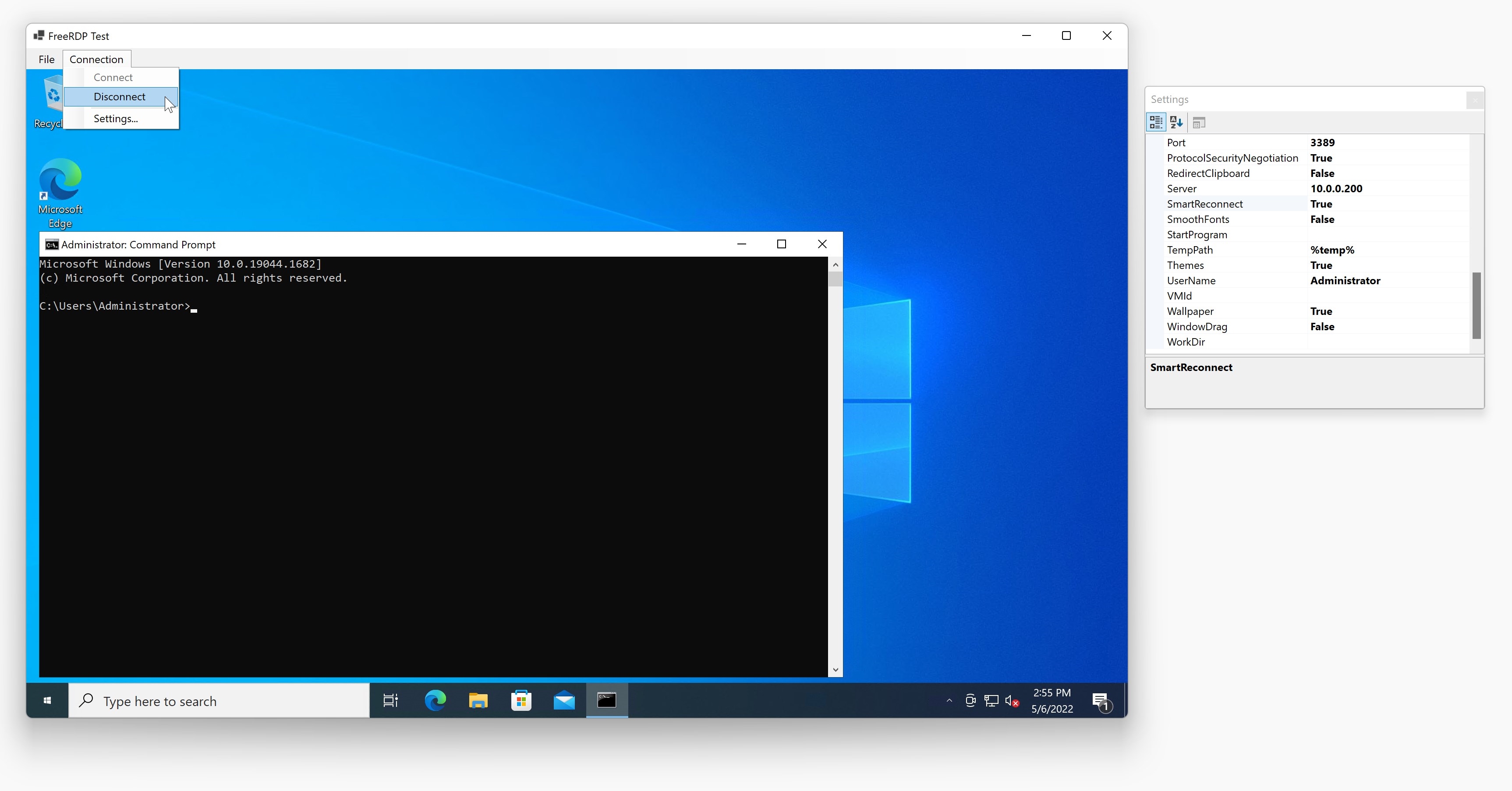
The FreeRDP control starts the executable wfreerdp.exe and passes on the correct parent-window handle in order to render the remote desktop session in an embeddable WinForms control. The executable is shipped with the control (as embedded resource) and will be "extracted" to a configurable path (default is %temp%) before it is executed.
You should install the RoyalApps.Community.FreeRDP.WinForms with NuGet:
Install-Package RoyalApps.Community.FreeRDP.WinForms
or via the command line interface:
dotnet add package RoyalApps.Community.FreeRDP.WinForms
Place the FreeRdpControl on a form or in a container control (user control, tab control, etc.) and set the Dock property to DockStyle.Fill
To configure all RDP relevant settings, use the properties of the FreeRdpConfiguration class which is accessible through the FreeRdpControl.Configuration property.
Once the configuration is set, call:
FreeRdpControl.Connect();to start a connection.
Note Before you call
Connect();, make sure you have set theServer(hostname or IP address) and the credential properties (UsernameandPassword). An exception will be thrown if these properties are not set. If you connect to a Windows machine using the IP address, the connection may fail because the subject name of the certificate doesn't match. In this case, setIgnoreCertificatestotrue.
To disconnect, simply call:
FreeRdpControl.Disconnect();Before you call Connect();, you can set the remote zoom level (DPI) using the following properties:
int DesktopScaleFactor (valid values between 100 and 500)
int DeviceScaleFactor (valid values: 100, 140, 180)
Note Recommended values are for DeviceScaleFactor 100 for DesktopScaleFactor of 100 140 for DesktopScaleFactor between 100 and 199 180 for DesktopScaleFactor of 200 or more
If FreeRdpConfiguration.AutoScaling is set to true, the initial DesktopScaleFactor is determined based on DPI settings.
While connected you can use the following methods to change the remote zoom level:
ZoomIn(), ZoomOut(), ResetZoom() and SetZoomLevel(int scalingInPercent)
Note Calling these methods will kill the
wfreerdp.exeand restart it using the new scaling values.
When the connection has been established, the Connected event is raised.
The Disconnected event is raised when:
- the connection couldn't be established (server not reachable, incorrect credentials)
- the connection has been interrupted (network failure)
- the connection was closed by the user (logoff or disconnect)
- the
wfreerdp.exedied for some reason
The DisconnectedEventArgs may have an error code or error message for more information.
The CertificateError event is raised when the TLS handshake failed. Calling e.Continue(); in the event handler will set the FreeRdpConfiguration.IgnoreCertificate property to true and retries the connection.
The VerifyCredentials event is raised when an authentication error occurs and the login fails. Calling e.SetCredentials(string? username, string? domain, string? password); in the event handler will set the credential properties in the FreeRdpConfiguration class and retries the connection with the provided credentials.
The demo application is quite simple. The Connection menu has the following items:
Starts the remote desktop connection.
If you click Connect the first time, you get a prompt for the server name to connect to and the a prompt for the credentials. If you want to change the server or the credentials, use the Settings window.
Stops the remote desktop connection by killing the wfreerdp.exe process associated with the session.
Shows a window with all the settings from the FreeRdpConfiguration class. Edit/change the settings before you click on Connect.
If DesktopWidth and DesktopHeight properties are set to 0 (default), the remote desktop size is determined by the container size the control is placed on.
If SmartReconnect is set to true and the container size has changed, the connection will automatically be closed and re-opened to adapt to the new desktop size.
Special thanks to Marc-André Moreau and akallabeth for all the help